

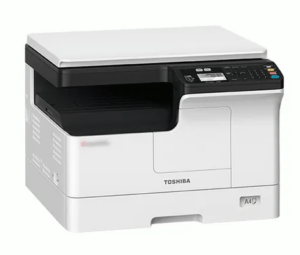
Toshiba e-Studio 2523a / 2523am / 2523ad Driver Download
Basic INF driver for Windows 7, 8, 8.1, 10, 11, Server 2008, 2012, 2016 (32, 64-bit)
(32, 64-bit)
File Name: toshiba-2523ad-basic-inf-driver.zip
Size: 6.04 MB
Version: 1
Type: Basic driver (INF)
Language: English
Driver Pack Contains: Printer and scanner driver included
৳ 99 ৳ 250
The Toshiba e-Studio 2523a / 2523am / 2523ad all-in-one printer delivers its best performance when you use its latest version drivers during installation. In this guide, you will find free and latest driver download links. Please check out the download section and the installation to know how to install 2523 model number driver on a computer (Windows / Linux / Mac).
How To Install Toshiba e-Studio 2523a / 2523am / 2523ad Driver
Proper performance of your Toshiba printer is ensured only when you install the right Toshiba e-Studio 2523a / 2523am / 2523ad printer drivers by using their proper installation method. For more information, read the steps given below.
Step 1: Find the Driver
- In order to download the drivers, visit the Toshiba website or download section of this guide.
- Go to the support or downloads section in the Toshiba website.
- In the search box, enter the printer model name (e-Studio 2523a / 2523am / 2523ad), then choose your OS version.
Step 2: Download the Driver
- Click the download link of your preferred driver.
- Wait for the driver setup file to download.
Step 3: Install the Driver
- Usually, you will find the driver setup file in the downloads folder
- Run the driver setup file, in the License agreement screen, select ‘I accept the terms of the license agreement’ option, then click on the ‘Next’ button.
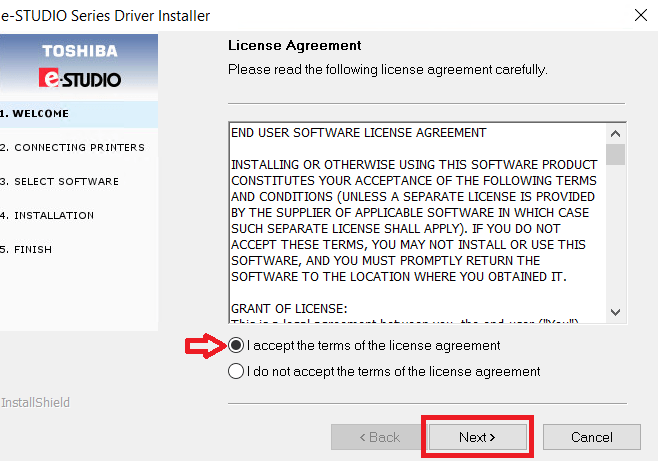
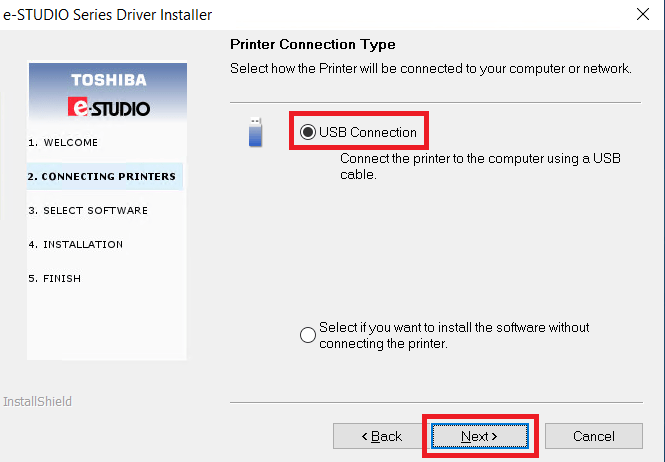
Step 4: Connect the Printer
- Select ‘USB Connection’ method, then click on ‘Next’.
- Connect your Toshiba printer with your computer by using a USB cable, then click on the ‘Next’ button. Follow the prompts to complete the driver installation.
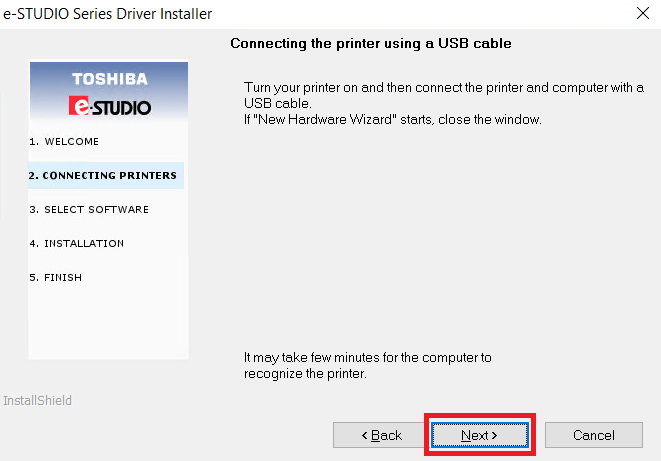
More information about installation:
There are no reviews yet.