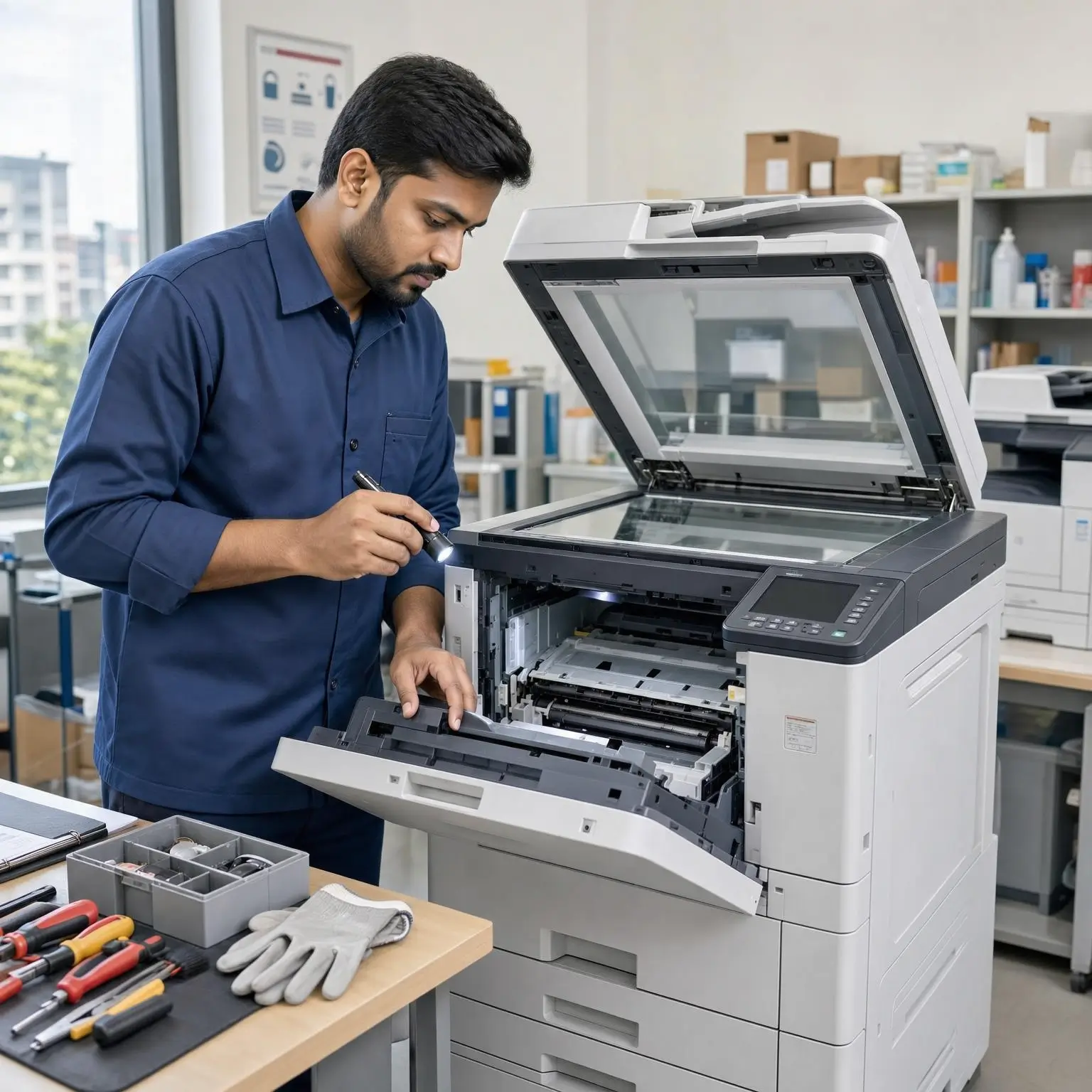
Regular photocopier maintenance can help reduce avoidable paper jams, poor print quality and interruptions to your office’s work. Some basic care can be handled by users, while more complex repairs should be left to a qualified technician.
Always follow the instructions for your specific machine. The tips below are general guidance, not a replacement for the manufacturer’s manual.
1. Keep the copier in a suitable location
Place the machine on a level, stable surface with enough space around it for ventilation and access. Avoid locations exposed to excessive dust, direct sunlight, moisture or heat. Follow the manufacturer’s guidance for the operating environment.
2. Store paper properly
Damp, curled or damaged paper can contribute to feeding problems and jams. Keep paper flat and dry, and store unused reams in their packaging until needed. Use paper that meets the machine’s specifications, and make sure tray guides are adjusted to fit the paper.
3. Load trays carefully
Do not exceed the tray’s paper limit. Before loading, check that sheets are aligned and free of folds or staples. If the copier allows you to choose the paper size or type for a tray, make sure those settings match what is loaded.
4. Clear paper jams gently
Use the copier’s display or manual to find the correct jam-clearing steps. Remove paper slowly and in the direction shown. Forcing a stuck sheet can tear it or damage internal parts.
Some internal components may be hot or delicate. Do not touch them unless the manufacturer’s instructions specifically identify them as safe for user access.
5. Clean accessible surfaces carefully
Dust and marks on the scanner glass can affect scanned or copied pages. If the manual permits, clean the glass with a soft, lint-free cloth and the recommended method. Avoid spraying liquid directly onto the machine, and do not use products that the manufacturer does not approve.
6. Use suitable toner and supplies
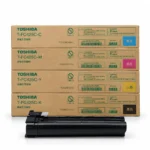
Use consumables that are compatible with the exact make and model of your copier. If you are comparing different supply options, consider compatibility, print quality, yield, warranty conditions and the total cost—not just the initial price.
7. Pay attention to print-quality changes
Faded pages, streaks, spots or uneven colour can be signs that a supply is running low or that the machine needs attention. Check the machine’s display and manual for guidance. If the issue continues after the recommended user steps, arrange a service assessment.
8. Respond to recurring warnings
A single alert may be straightforward to resolve, but repeated errors or frequent jams should not be ignored. Keep a note of the error message, when it occurs and what type of job was being printed. This information can help a technician diagnose the problem.
9. Keep the area around the copier tidy
Clear space around the machine makes it easier to refill paper, collect documents and spot problems. Keep drinks, loose paper clips and other items away from the copier to help prevent spills or foreign objects from entering the paper path.
10. Schedule service according to usage
The right maintenance schedule depends on the copier model, print volume and manufacturer’s recommendations. Keep track of page counters and recurring issues, and ask a qualified technician about service if print quality or reliability starts to decline.
A simple maintenance routine
- Regularly: Check the display for alerts and keep the output area clear.
- When loading paper: Check that it is dry, correctly aligned and suitable for the tray.
- At intervals recommended by the manual: Clean user-accessible areas using the approved method.
- When problems recur: Record the error and contact a technician rather than repeatedly forcing a workaround.
Consistent care can help your team notice small issues before they become bigger interruptions. For model-specific advice, contact Unique Copier Solutions with your copier’s make, model and a description of the problem.
Frequently Asked Questions
How often should a photocopier be serviced?
It depends on the model, workload and manufacturer’s recommendations. Check the manual and ask a qualified technician to advise you based on your machine’s usage.
Can I fix a paper jam myself?
You can usually clear a jam by following the instructions shown on the copier or in its manual. Do not force stuck paper or touch parts that the manufacturer identifies as unsafe.
Why does my copier keep jamming?
Possible causes include unsuitable or damp paper, incorrect tray settings, overloaded trays or a machine fault. If basic checks do not solve the problem, note when the jams happen and seek technical advice.